
#489 – Editing in the Browser with AI
Everyone is trying to revolutionise video editing these days.
There are plenty of AI-based editing tools* that promise to do away with the ‘boring bits’ - like actually watching the footage and making selects - but that feels like an anathema to me and to the work the editor must do in order to be able to perform the task they're hired to do:
Have an opinion.
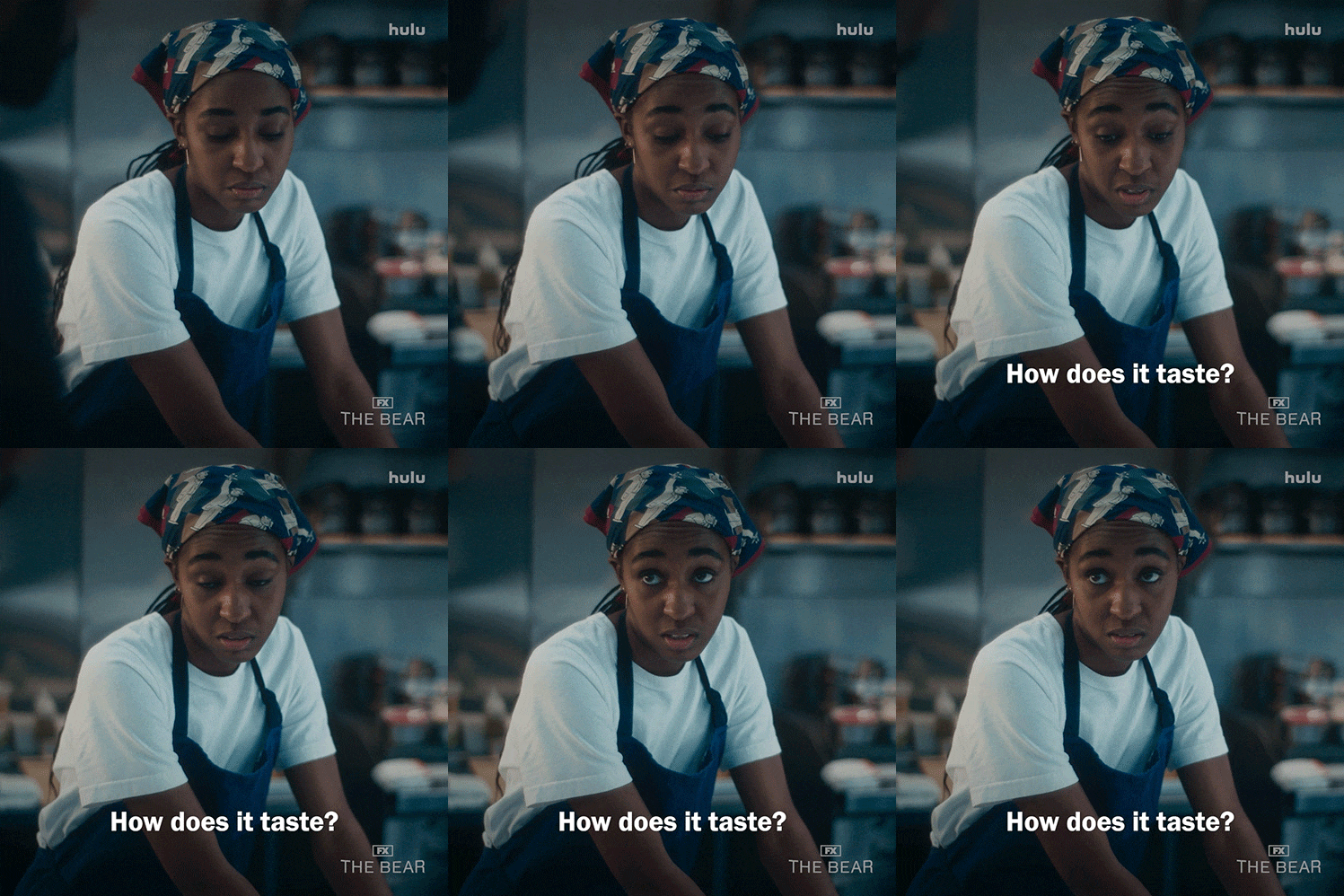
As Oscar-winning editor Kirk Baxter put it, in his recent Cut/daily Meets... interview, editors are hired not because we “know where the buttons” are, but:
You're just employed for opinion. That's it.
It's just an opinion-based business.
Having good taste**.
— Kirk Baxter, ACE
My main problem with many of these AI-centric video editing tools is that they often require:
- a big upload of all your media
- blindly trusting the AI to make decisions
- a chatbox being the main creative interface
And so they side-step the crucial process of:
- watching — which is how you learn the footage
- organising — which is when you make your selects and physically (in a digital sense) put things where you know how to find them (bins, timelines, groups etc.)
- memorising — which is where you generate creative ideas for combinations, juxtapositions, common themes, and everything else.
- Plus knowing what can and can't be done in response to client requests, etc.
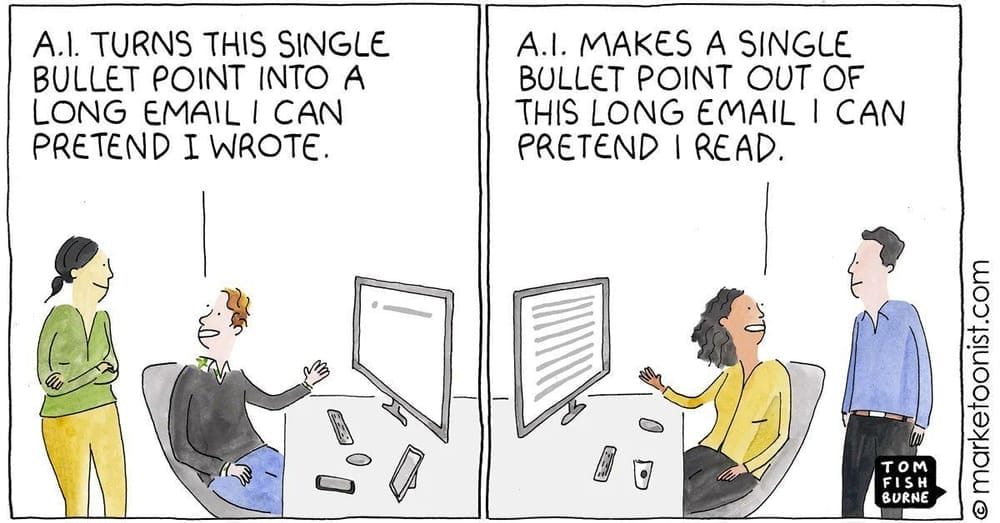
So what is the role of AI elbowing its way into editorial?
Here, the path diverges.
1) There are tools to help those who can't edit have an edited video.
2) There are tools to help those who can edit edit faster.
I can't say that the first group will get a good video, but they'll have something.
The second group will have to get used to achieving more in less time - which is nothing new.
Here, tools, especially transcription-based tools, can be used by both groups to either help you find what you're looking for more efficiently, build stringouts of topics for informed selection, or roll the dice and let it cut the whole thing for you.
How both groups will use these same tools will depend on who you are and what you're trying to achieve.
But there is (yet) another category of tools that are trying to revolutionise video editing by changing where you do it, more than (although also quite a bit) how you do it.
That's the promise of browser-based video editing tools like Riverside, which is perfectly placed to benefit from adding more and more AI-powered tools into its platform in a way that editors will like, because
- a) your media is already on Riverside
- b) you have direct editorial access to everything
So the question underneath all the thoughts in this sponsored Issue of Cut/daily is:
Can a professional editor cut online with Riverside, and is it any good?
Let's find out.
*Adobe QuickCut, Eddie.ai, and Quickture spring to mind. I'm in the process of building PaperEdit.app as an alternative to these kinds of tools, which uses tiny uploads to power human decisions yet removes manual labour to save you time.
Digression – What is good taste?
**What is good taste anyway?
Jack Cheng has a great article on this: What is taste, really?
The best path [to good taste] is the same: You make things. And as you make them, you try to be aware of how you make them. You try to speak your why—why “yes” to this and “no” to that.
— Jack Cheng, Contributing Editor, Every.to
Also, the masterful Every Frame a Painting episode, How Does an Editor Think and Feel? is well worth a watch for an exploration of how editors express their taste.
For more on this, read the How to Become Great: Get Good at Something section of #433 – How to become great in the age of AI
Anyway, I digress.
Editing in the Browser with Riverside
Riverside has tools both aforementioned groups will like; tools for those who can't edit but need ‘content’ and tools for those who can edit and want efficiency.
I've personally used Riverside for years to record all of my in-person interviews with some of the best editors in the business for these reasons:
- Pristine video recording — Each video feed is recorded locally, so it is unaffected by internet dropouts or live encoding errors.
- Individual video/audio stems — Each source (video, audio, and shared screen) is recorded separately in the source resolution (up to 4K) for editing.
- Auto-sync and Premiere Timeline Download – Everything is synchronised and available to download as a prepared Adobe Premiere Pro XML.
- Auto Transcribed – Download the conversational transcript as a .txt file or .srt subtitle file ready to use in an AI bot or video editing software.
- Ease of use – To record, just send a studio invite link and open it with Chrome. That’s all the technical hurdles anyone has to clear!
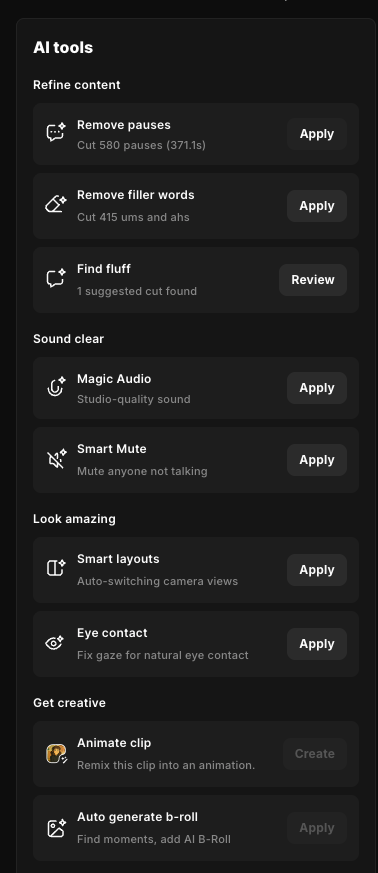
This makes Riverside an ideal platform for recording and post-producing video and audio podcasts (and the like) with help from all the newest AI-powered tools, such as:
- Magic Hooks, Clips, Segments, and Episodes – Auto-edit content
- AI Translate – Translate, Dub, or lip-sync to 30 languages
- AI Video Dub – Replace dialogue with lip-sync to fix mistakes
- AI Voice – Text-to-speech of your own voice.
- AI Smart Scenes – Automatically cut between shot layouts
As an editor, the things I appreciate about the text and track-based editing interface are:
- Multi-track editing – the experience I'm used to
- Text-based editing – for finding ‘that bit’
- Magic audio – Clean-sounding dialogue in a click
- Cross Talk Markers – See where conversations overlap
- Snappy editing – the interface feels quick and responsive
Editing in Riverside - The Experience and The Results
Before we go any further, I'm not saying I would upload a few terrabytes worth of media into Riverside to cut on its platform. That's not what it's designed to do.
What I am asking is, when cutting a podcast, webinar or other piece of media that Riverside is an ideal platform to record on, how far can you get with its editing tools?
How much can it help you produce the associated ‘content’ that goes along with successfully publishing one of these projects?
One benefit to this exploration is that I've got a solid project to benchmark against, which is my own (entirely manual) edit of my interview with Kirk.
The Experience
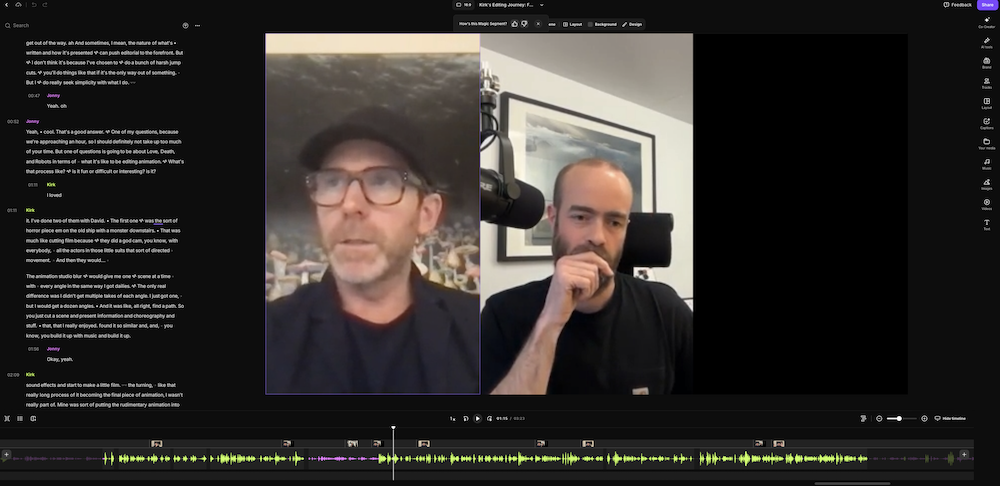
The fastest way to edit in Riverisde is with the text-based editing tools, although you can use the multi-track timeline too for precision edits, thanks to familiar waveforms and keyboard shortcuts.
Both of these are very responsive, and the colour coding of the speakers, icons for pauses (dots), filler words (triangles) make it easy to scan the transcript quickly.
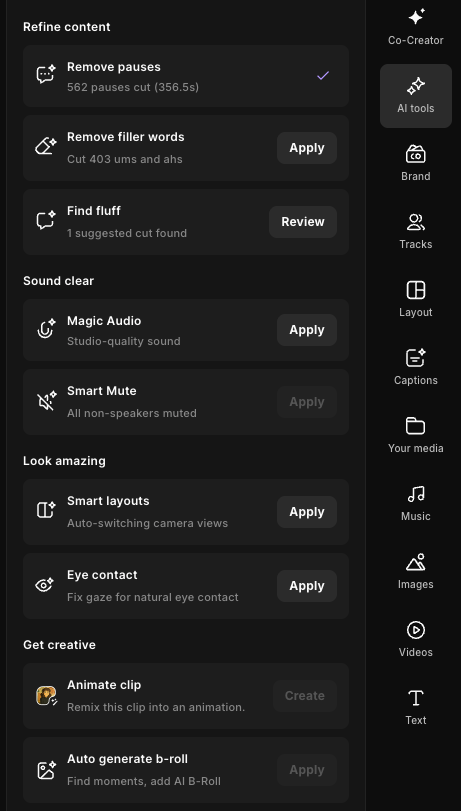
It's worth applying the bevvy of AI tools from the start, as you can always restore or tweak them on the timeline if any don't work out at that moment.
These genuinely make the process more efficient, trimming long, rambling interviews into a more enjoyable listen.
I'm talking about saving time on hundreds of edits.
One tip would be to leave the 'Show deleted parts' toggle on so you can grab the in and out points of these to refine them further if needed.
The Results
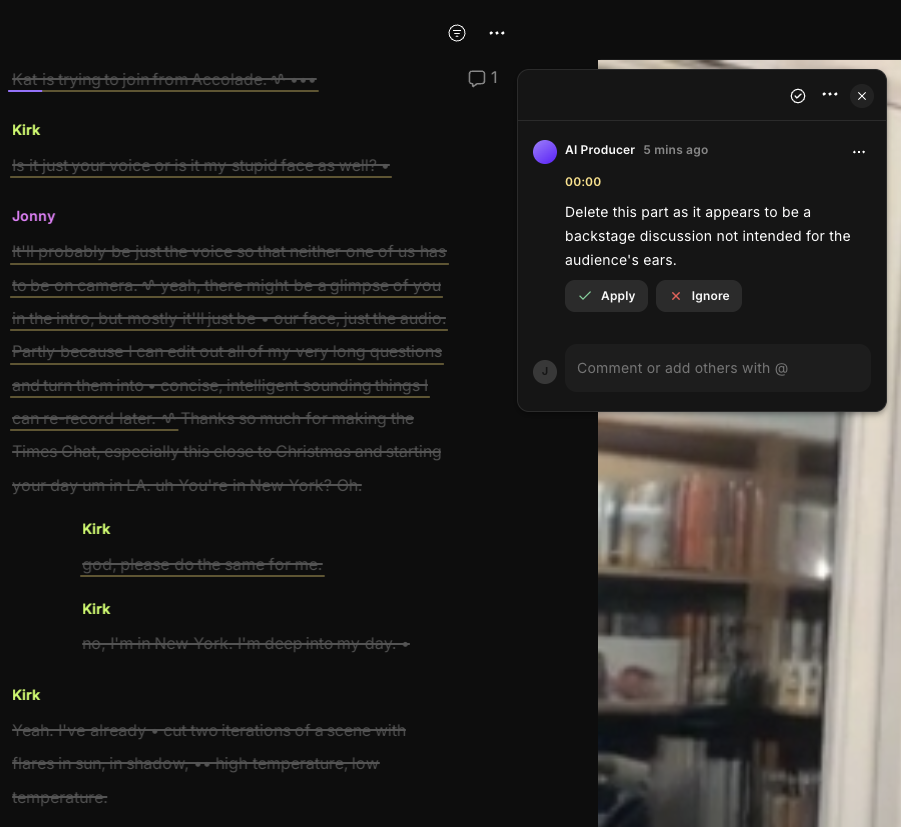
I was surprised by how well the 'Find fluff' tool correctly identified some dead moments in the original recording, although this was mostly initial ‘backstage discussion’ before I started in with my questions.
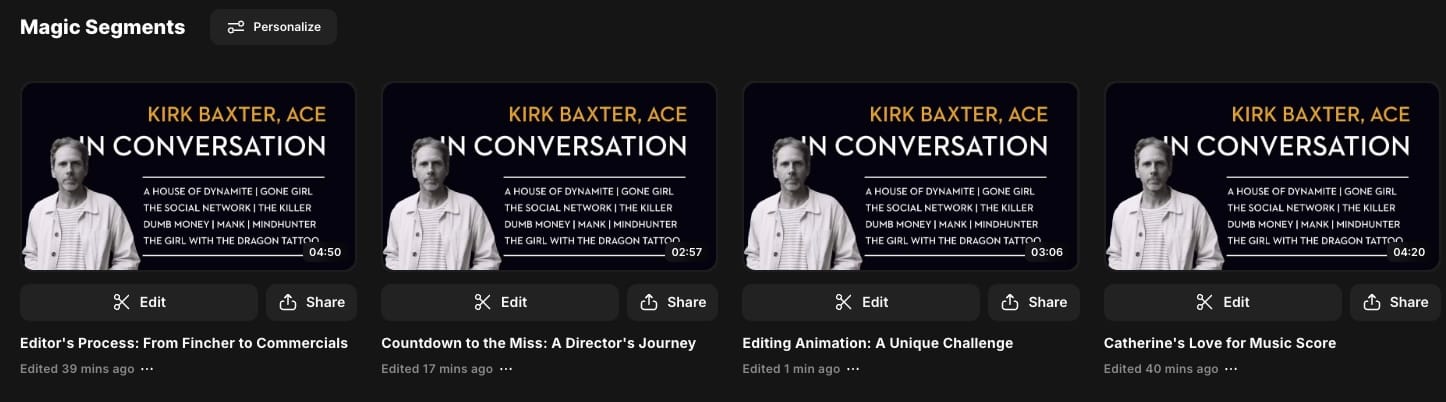
When it came to generating the Magic Hooks, Clips, Segments and even Episode, Riverside did a solid job of finding interesting moments, adding captions and exporting all the clips for me in a couple of clicks.
You can personalise the settings (how tightly it edits, what the fonts look like etc.) for the Magic creations and hit ‘generate’ as many times as you like. It would be helpful if there were a way to organise and favourite these generated edits, as once you've got 7-10 of them strung out, it can be hard to keep tabs on which is which.
That said, even though I personalised the settings to be as aggressive as possible, it still left in a few ums, stutters and repetitions that I would have manually removed. So it would be nice if you could add your own custom verbal ticks to target - such as my copious use of “like, you know” etc.
I did try to task the new AI Co-Creator chatbot with making all my questions shorter and more intelligent, but I ran into its limitations there.
I also asked it if we should re-order the chapters for a better flow, which it thought long and hard about, but responded with nonsense.
However, on the plus side, you can personalise how the Co-Creator bot approaches the tone and content of your edit for a better fit for its suggestions.
Final Thought: The Best of Both Worlds
In conclusion, while Riverside can't automatically beat tens of thousands of hours of muscle memory in Adobe Premiere Pro (phew!) and the need to be professionally precise with every single cut point to accomplish my final edit, the editing process in Riverside is incredibly easy to get on with, given that the UI is entirely familiar to every editor.
What I would do in the future is have Riverside create its own rough cut and then download it as a Premiere Pro timeline.
From there, I would tweak and polish and upload my final export into Riverside and hence use its AI-driven social media tools to crank out:
- Thumbnails and social media images
- Show notes, chapter lists and key quotes
- Captioned and social-ready hooks (short), clips (medium) and segments (long)
This would be a HUGE TIME-SAVER and an easy way to get a lot more value out of the content I've already created.
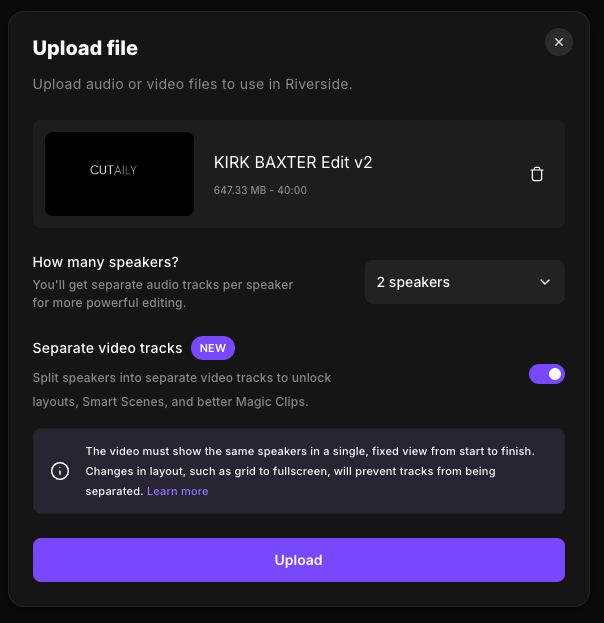
One cool thing I discovered while testing this is that Riverside would even have been able to dissect my edit (if I'd planned ahead for this by maybe uploading a 4K output for an HD deliverable), separating the video tracks by splitting up the screen and then auto-switching between them when creating the 'Magic clips' etc.
A useful thing to know!
Experiment with Riverside's editing tools yourself for free or save 20% on any Riverside subscription with the discount code: jonnyelwyn.
So remember, refine your palate and cut daily.
Save money in Post with Cut/daily!
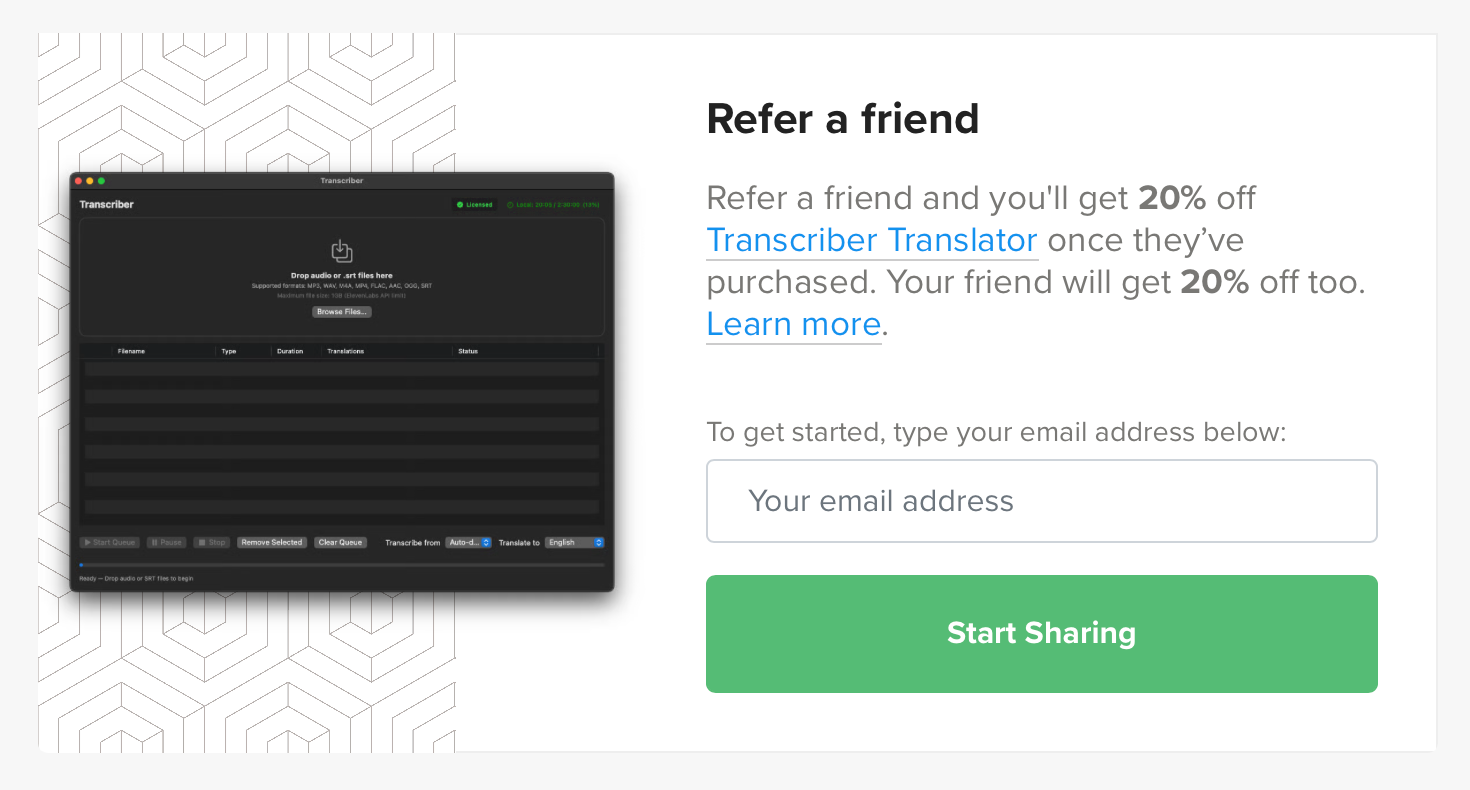
Get 20% off Cut/daily's post-production apps with new Cut/daily referral codes!
Refer a friend with a 20% discount code, and if they make a purchase, you'll get 20% off too.
Refer two friends, and your discount will stack to 40%; three friends, 60%, etc.
Transcriber Translator was recently updated with the latest AI models from Elevenlabs, Gemini, and Claude to deliver more accurate transcription and translation for your edit.
All apps include a lifetime of free updates and a two-machine license.